Domain Tools

Dynadot MCP

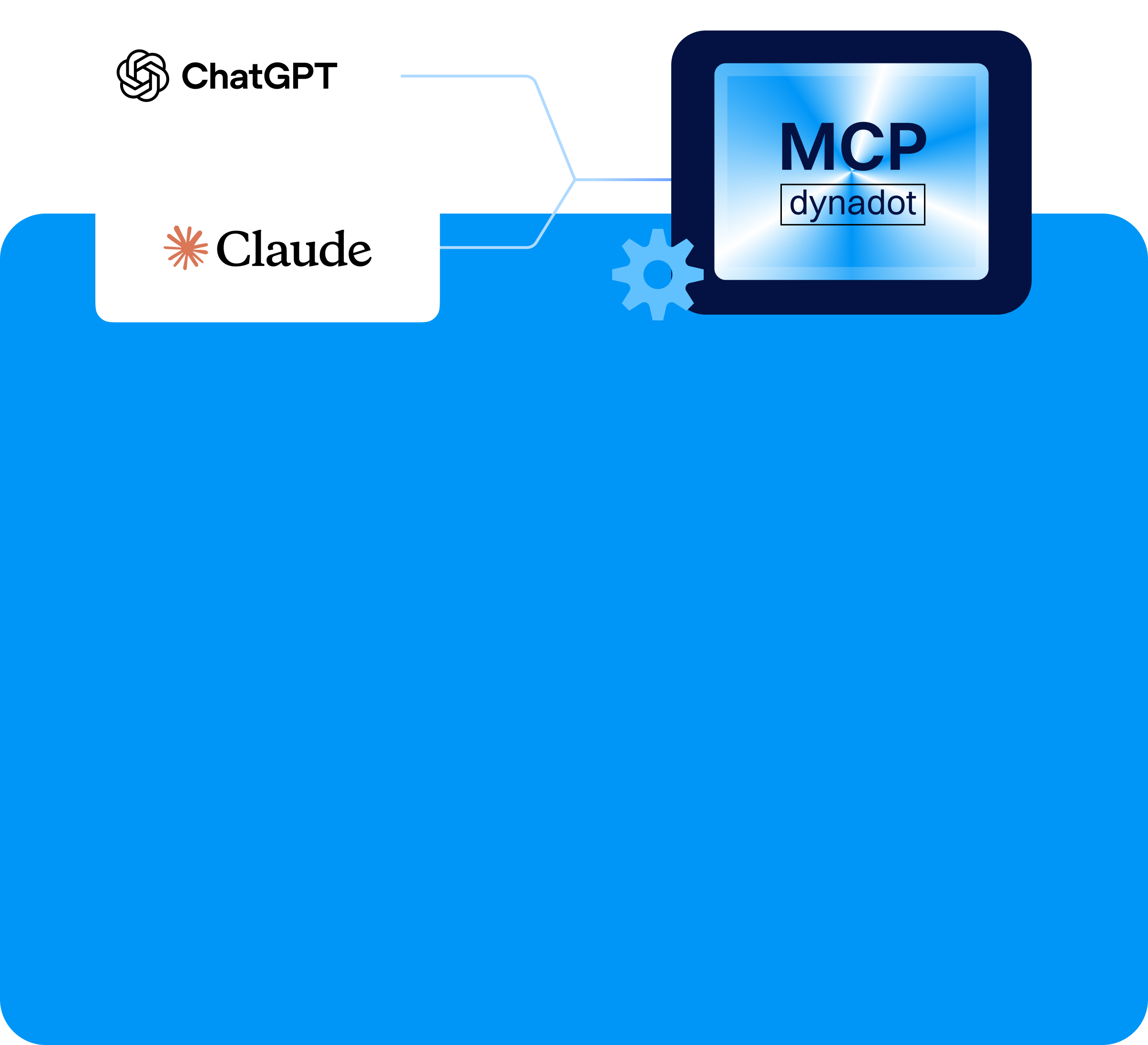
Dynadot MCP is an easier way to manage your domains, just by talking to an AI assistant.It uses the Model Context Protocol (MCP), an open standard that lets AI platforms like ChatGPT and Claude connect securely to your Dynadot account through our MCP server. Dynadot MCP endpoint: https://mcp.dynadot.com/mcp
MCP Banner

What can you do with Dynadot MCP?

Once connected, these AI tools can:

  • Check a domain name availability
  • Register domains for you
  • View your domains and account info
  • Review nameservers and DNS records
  • Explore our aftermarket

All those actions could be done in simple language, instead of clicking through menus.

You stay in control: MCP requires you to sign in first, and sensitive actions still ask for your confirmation.

How to Enable Dynadot MCP

Before connecting Dynadot MCP to an AI platform, you will need to enable API access in your Dynadot account. It only takes a minute.
1Log in to your Dynadot account.
3Create an API key.
4Enable MCP on the same page.
5Please wait for 5-10 minutes for the API and MCP to initialize
Once initialization is complete, your Dynadot account should be ready to connect to supported MCP clients.
MCP Enable

How to Connect Dynadot MCP to ChatGPT

The following example uses ChatGPT as the MCP client.

Please note that ChatGPT MCP/custom connector availability may depend on your ChatGPT plan, workspace settings, region, and OpenAI's current product rollout. In general, a paid ChatGPT plan such as Plus or above is required.

1Open ChatGPT and go to Settings.
2Go to Security and login, scroll down to the Developer mode section, and turn on Developer mode.
This is required to add custom MCP connectors. ChatGPT marks it as "Elevated risk" — only connect servers you trust.
3Open “Plugins” from the sidebar, then click the + button to create a new plugin.
4Give the plugin a name (for example, "Dynadot Mcp").
5Enter the Dynadot MCP server URL : https://mcp.dynadot.com/mcp
6Follow the authorization steps shown by ChatGPT.
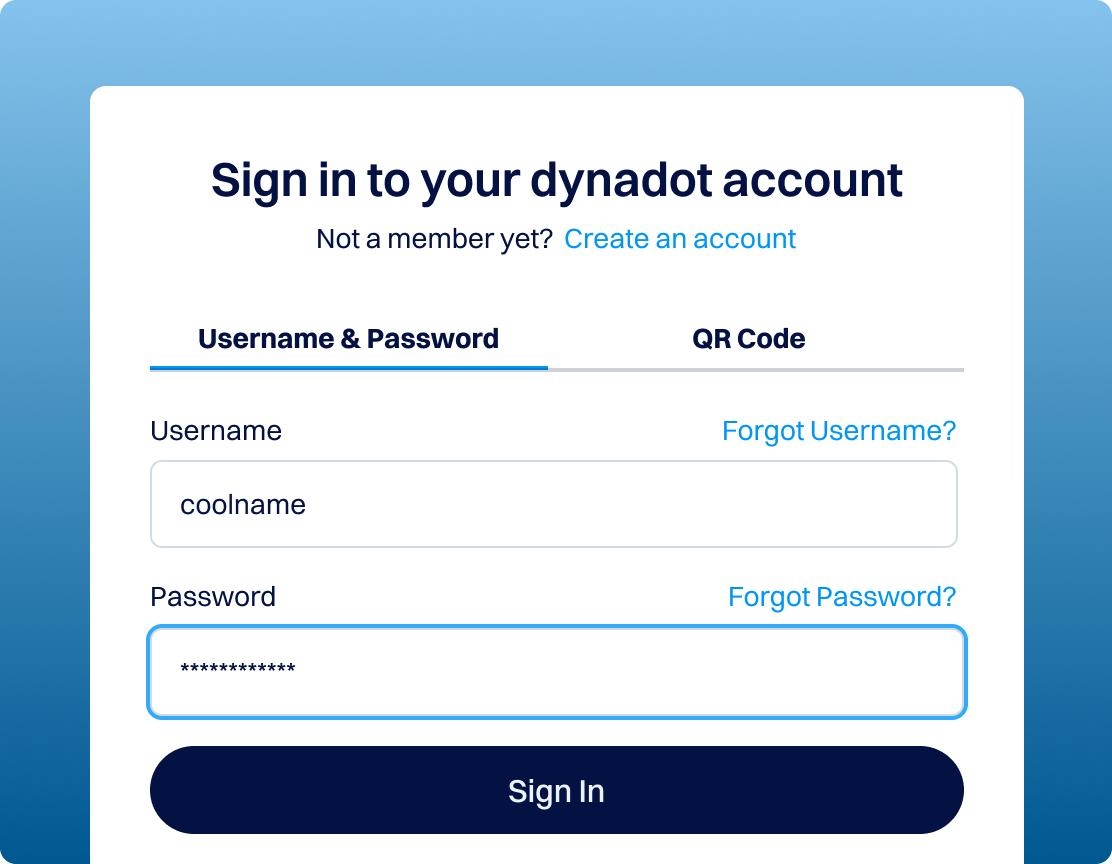
It would redirect to the Dynadot page, and ask for your Dynadot username and password for authorization.
7Once the connection is completed, Dynadot MCP should appear as an available connector/tool in ChatGPT.
After connecting, you can simply ask ChatGPT to use Dynadot MCP for supported domain management tasks. For example, you can try checking if a domain is available or renewing one you already own.

Notes

Dynadot MCP requires authentication before use. Make sure your Dynadot API key has been created and MCP has been enabled before you try to connect from ChatGPT or another MCP-compatible AI platform.

If the connection doesn't work right away after enabling MCP, wait a few more minutes and try again — API initialization can take around 5 – 10 minutes.

Most billable actions performed through MCP use your Dynadot account balance. Please make sure your account has enough balance before you begin.

Have a question? Reach our team of domain and website experts.

Domain MCP FAQs

What is Dynadot MCP?

What is an MCP server?

What is the Model Context Protocol?

What can I do with Dynadot MCP?

Is Dynadot MCP secure?

Do I need coding experience to use Dynadot MCP?

Is Dynadot MCP a free tool?

Can I use the Dynadot API without using MCP?

Is there a full list of API calls available through MCP?